|
Limit
|
Maximum
value
|
Limit
type
|
Notes
|
|
List row size
|
8,000 bytes per row
|
Boundary
|
Each list or library item can only
occupy 8,000 bytes in total in the database. 256 bytes are reserved for
built-in columns, which leaves 7,744 bytes for end-user columns. For details
on how much space each kind of field consumes,
|
|
File size
|
2 GB
|
Boundary
|
The default maximum file size is 250
MB. This is a configurable limit that can be increased up to 2 GB (2,047 MB).
However, a large volume of very large files can affect farm performance.
|
|
Documents
|
30,000,000 per library
|
Supported
|
You can create very large document
libraries by nesting folders, or using standard views and site hierarchy.
This value may vary depending on how documents and folders are organized, and
by the type and size of documents stored.
|
|
Major versions
|
400,000
|
Supported
|
If you exceed this limit, basic
file operations—such as file open or save, delete, and viewing the version
history— may not succeed.
|
|
Minor versions
|
511
|
Boundary
|
The maximum number of minor file
versions is 511. This limit cannot be exceeded.
|
|
Items
|
30,000,000 per list
|
Supported
|
You can create very large lists
using standard views, site hierarchies, and metadata navigation. This value
may vary depending on the number of columns in the list and the usage of the
list.
|
|
Rows size limit
|
6 table rows internal to the
database used for a list or library item
|
Supported
|
Specifies the maximum number of
table rows internal to the database that can be used for a list or library
item. To accommodate wide lists with many columns, each item may be wrapped
over several internal table rows, up to six rows by default. This is
configurable by farm administrators through the object model only. The object
model method is SPWebApplication.MaxListItemRowStorage.
|
|
Bulk operations
|
100 items per bulk operation
|
Boundary
|
The user interface allows a
maximum of 100 items to be selected for bulk operations.
|
|
List view lookup threshold
|
8 join operations per query
|
Threshold
|
Specifies the maximum number of
joins allowed per query, such as those based on lookup, person/group, or
workflow status columns. If the query uses more than eight joins, the
operation is blocked. This does not apply to single item operations. When
using the maximal view via the object model (by not specifying any view
fields), SharePoint will return up to the first eight lookups.
|
|
List view threshold
|
5,000
|
Threshold
|
Specifies the maximum number of
list or library items that a database operation, such as a query, can process
at the same time outside the daily time window set by the administrator
during which queries are unrestricted.
|
|
List view threshold for auditors
and administrators
|
20,000
|
Threshold
|
Specifies the maximum number of
list or library items that a database operation, such as a query, can process
at the same time when they are performed by an auditor or administrator with
appropriate permissions. This setting works with Allow Object Model Override.
|
|
Subsite
|
2,000 per site view
|
Threshold
|
The interface for enumerating
subsites of a given web site does not perform well as the number of subsites
surpasses 2,000. Similarly, the All Site Content page and the Tree View
Control performance will decrease significantly as the number of subsites
grows.
|
|
Coauthoring in Word and PowerPoint
for .docx, .pptx and .ppsx files
|
10 concurrent editors per document
|
Threshold
|
Recommended maximum number of
concurrent editors is 10. The boundary is 99.
If there are 99 co-authors who
have a single document opened for concurrent editing, each successive user
sees a "File in use" error, and can only open a read-only copy.
More than 10 co-editors will lead
to a gradually degraded user experience with more conflicts, and users might
have to go through more iterations to successfully upload their changes to
the server.
|
|
Security scope
|
50,000 per list
|
Threshold
|
The maximum number of unique
security scopes set for a list cannot exceed 50,000.
For most farms, we recommend that
you consider lowering this limit to 5,000 unique scopes. For large lists,
consider using a design that uses as few unique permissions as possible.
When the number of unique security
scopes for a list exceeds the value of the list view threshold (set by
default at 5,000 list items), additional SQL Server round trips take place
when the list is viewed, which can adversely affect list view performance.
A scope is the security boundary
for a securable object and any of its children that do not have a separate
security boundary defined. A scope contains an Access Control List (ACL), but
unlike NTFS ACLs, a scope can include security principals that are specific
to SharePoint Server 2013. The members of an ACL for a scope can include
Windows users, user accounts other than Windows users (such as forms-based
accounts), Active Directory groups, or SharePoint groups.
|
Tuesday, September 15, 2015
List and library limits in SharePoint 2013

Sandbox Limitations:
Sandbox is a secured wrapper and it has restrictions on code
to run in SharePoint environment. Few key limitations which developers should
know are listed below.
- No Security Elevation - RunWithElevatedPrivileges which runs the specified block of code in application pool account(typically System Account) context is not allowed in Sandbox code. SPSecurity class also not allowed to use in Sandbox.
- No Email Support - SPUtility.SendMail method has been blocked explicitly in Sandbox, However .Net mail classes can be used to send mails. Additionaly sandbox won't allow to read Farm SMTP address. So developers has to specify the SMTP address in code itself(may be some other workaround).
- No Support to WebPartPages Namespace - Sandbox won't allow to use Microsoft.SharePoint.WebPartPages namespace.
- No Support to external Webservice - Internet web service calls are not allowed to ensure security in Sandbox solutions. Allow Partially Trusted code also can't be accessed within Sandbox.
- No GAC Deployment - Sandbox solutions are not stored in File System(Physical path) and assemblies can't be deployed to Global Assembly Cache(GAC). But it's available on C:\ProgramData\Microsoft\SharePoint\UCCache at runtime. Note the ProgramData is a hidden folder.
- No Visual Webparts - Visual Studio 2010 by default won't allow to create Visual Webparts to deploy as sandbox solution. But with Visual Studio PowerTools extensions(downloadable from Microsoft MSDN website) Visual Webparts can be developed and deployed as sandbox Solutions
Find error messages with a Correlation ID
Introduction
In SharePoint 2010, you’ve got some new capabilities for error reporting and logs. One of the most noted features for me as a developer is that whenever you bump into an error message – you’ll be presented with a correlation ID token.In this article I will try to explain how you can fetch that token from SharePoint, and also provide a small snippet of code to be able to build your own “Log Searcher Web Part” for your administrators.
Correlation ID, what’s that?
In SharePoint 2010, you get a Correlation ID (which is a GUID) attached to your logs/error messages when something happens. This ID can then be used to lookup that specific error from the logs.This Correlation ID is used per request-session in SharePoint 2010, and if you are in the process of requesting some information from SharePoint and bump into some problems along the way – your Correlation ID will be the best starting point for searching for what went wrong along that request!
You might get an error message like this in SharePoint 2010 (don’t worry, if you haven’t seen one like this one yet – just hang in there, sooner or later you will..
Search for the log messages based on the Correlation ID token
So if you’ve gotten such an error message and want to find out more information about the actual error and don’t have the time to go around poking in the logs and searching – there’s a few methods you can do this rather easily, as described below.Using PowerShell to lookup a log message based on Correlation ID token
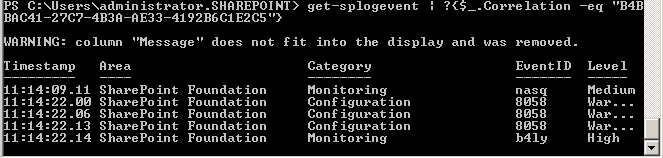
One of the quick-n-awesome ways to do this is to simply hook up a PowerShell console (SharePoint 2010 Management Shell) and then just write the following command (replace the <GUID> with the Correlation Id):get-splogevent | ?{$_Correlation -eq "<GUID>" }
This will give you the details about your specific error like this in the console:
You might want to be more precise and get more specific details out of your query, then you can try something like this:
get-splogevent | ?{$_.Correlation -eq "<GUID>"} | select Area, Category, Level, EventID, Message | Format-List
This will give you the details about your specific error like this with some juicy details:

get-splogevent | ?{$_.Correlation -eq "<GUID>"} | select Area, Category, Level, EventID, Message | Format-List > C:Awesome.log

Limitations of SharePoint Online
Sites Types
- Single public facing site
- Multiple internal/private sites (top level is a Team Site).
*There are no web applications. All sites must exist under a single web application using separate site collections
Data Storage Limitations
- Tenant storage: 10 GB + 500 MB per subscribed user + additional storage purchased. For example, if you have 10,000 users, the base storage allocation is approximately 5 Terabytes (10 GB + 500 MB * 10,000 users).
- Site collection: Hard limit of 100GB
- Overall subscription limit: 25TB
External Users
Per MS: “An external user is a person who has been granted access to your SharePoint Online site, but who is not a licensed user within your organization. External users are users who are not employees, contractors, or onsite agents for either you or your affiliates.”- Maximum number of external users: 10,000
- External users cannot create their own My Sites or OneDrive Pro
- Cannot change their profile, edit picture or see tasks
- Cannot be an administrator for a site collection
- Cannot access search center or execute searches against “everything”
Missing Features/Services in SharePoint Online (365)
Missing: Central Administration
Does not exist in SharePoint Online (SPO), rather there is an “SharePoint Admin Center”Missing: Web Application Management / Managed Paths
- Starts at the Site Collection level
- All sites, other than the public and top level team site, must exist under the “.SharePoint/sites/” area
Missing: Full Trust Solutions
You can only create Sandbox and App model solutions. 3rd party solutions would need to be in this format.Missing: Search Control and Index
- Unable to set crawl schedules
- Unable to initiate crawl (default is ~5 minutes)
- Unable to create custom solutions against Search Index
- Unable to add entity extraction (custom refiners)
- Unable to enhance relevancy (custom ranking models)
- No federated search
Missing: Cross site publishing
Per MS: “Cross-site publishing is a new publishing method that lets you create and maintain content in one or more authoring site collections and publish this content in one or more publishing site collections by using Search Web Parts. Cross-site publishing complements the already existing publishing method, author-in-place, where you use a single site collection to author content and make it available to readers of your site.”Missing: Content by search
(Content by search allows content to be displayed in a web part via search. One of the top features of SP2013.)Unavailable SharePoint Services
- Access Services 2010
- PerformancePoint Service
- PowerPoint Automation Service
- State Service
- User and Health Data Collection Service*
*(Office 365 provides separate health info in admin center) - Word Automation Service
- Work Management Service
- Microsoft Foundation Subscription Settings Service
Branding Limitations
Adding a custom design to the internal site “Team Site” is a bit counter intuitive. The option to select a MasterPage is not available under “Site Settings.” You must upload the MasterPage to the MasterPage gallery, along with a “Preview” file. Then, you must create a “Composed” look. From there it will be available under the “Change the Look” feature. I hope to detail this out more in a future post.
Limitations of Sandboxed Solution.
1. Deployment at site collection level (No Web Application-scoped
Features or Farm-scoped Features). So, If you have 100 site collections,
then you have to deploy the same sandbox solution to 100 site
collections.
2. No SPSecurity - Therefore no Elevated Privileges
3. You can't use SPSite object to get other site collections. (But you can use it to get current site as : SPSite site = SPContext.Current.Site)
4. Visual webparts are not supported (But you can use the "Visual Studio 200 SharePoint Power Tools" to get this functionality)
5. cannot call to the network resources. E.g. You cannot read/write to a database on the server (But you can use Silverlight)
6. Only "No code" workflows allowed. No Visual studio workflows (But the workflows without classes which are imported and edited in Visual studio will work!)
7. No support for System.IO, Therefore you Cannot read/write to the file system.(But you can use Web Services hosted in your on-premises and call from workflow)
8. HideCustomAction, CustomActionGroup are not allowed. But you can use <CustomAction>
9. Remember, Resource Usage Quotas/Limits applied on Sandboxed solutions http://msdn.microsoft.com/en-us/library/gg615462.aspx
10. No Feature stapling supported.
11. Can't write to registry (But you can read)
12. Limited Server Object Model MSDN: http://msdn.microsoft.com/en-us/library/gg615454.aspx
13. Can't set cookies in the sandbox. Use JQuery plugin instead http://plugins.jquery.com/project/cookie
14. No call to external WCF/web services such as HTTP calls (But we can use AJAX)
15. Content Type Binding is not supported
16. No support for custom Timer jobs
17. Can't use SharePoint mapped folders such as _layouts
18. Can't export a Sandboxed Web Part
19. Microsoft.SharePoint.WebControls and Microsoft.SharePoint.WebPartPages Namespace are not available. So you have no access to CssRegistration class, But you can use: <Link> tag for style sheets!
20. Managed Metadata - No programmatic access to taxonomy object model.
21. No ADO.NET support!
22. No support for SPUtility.SendEmail, So you can't Send Mails using this class.
23. No caching support
24. No Custom HTTP Modules
25. No developer dashboard
26. No Site Definition
27. Can't use controls for delegation
28. No Business Connectivity Services support
29. No Localization support
30. No SPWebConfigModification usage
31. Most of the Microsoft.SharePoint.Administration are disabled
32. No Document converters
33. No User Control support.
34. NO Custom service applications
35. SharePoint web controls (such as SPTreeView) are not supported
36. ClientScriptManager is not available - No access to ScriptManager.
37. Can't access the event viewer for logging
38. No PropertyBags of SharePoint Object model are not accessible,( But you can use SPWeb.AllProperties or custom list to store settings)
39. No GAC Deployment - Your solutions will be stored in content database. Can't deploy assemblies to GAC and Cannot call assemblies deployed out of Global Assembly Cache
40. CustomPropertyToolPart not supported
41. Can't create application pages or site pages with code behind
42. No Server side redirects, such as Response.Redirect, Server.Transfer, SPUtility.Redirect.
43. Can't access some of the enterprise services like UserProfile, Search
44. Can't access dlls from BIN and resources files(.resx)
45. Can't access code that is not marked to allow partially trusted callers
46. Can't access Cache object.
47. HttpRequest.Files collection will not contain anything
48. Only SPLimitedWebPartManager is available.
49. SharePoint Web controls (namespace SharePoint.WebControls) are not available,
50. Last but not least: site Template Binding is not supported.
2. No SPSecurity - Therefore no Elevated Privileges
3. You can't use SPSite object to get other site collections. (But you can use it to get current site as : SPSite site = SPContext.Current.Site)
4. Visual webparts are not supported (But you can use the "Visual Studio 200 SharePoint Power Tools" to get this functionality)
5. cannot call to the network resources. E.g. You cannot read/write to a database on the server (But you can use Silverlight)
6. Only "No code" workflows allowed. No Visual studio workflows (But the workflows without classes which are imported and edited in Visual studio will work!)
7. No support for System.IO, Therefore you Cannot read/write to the file system.(But you can use Web Services hosted in your on-premises and call from workflow)
8. HideCustomAction, CustomActionGroup are not allowed. But you can use <CustomAction>
9. Remember, Resource Usage Quotas/Limits applied on Sandboxed solutions http://msdn.microsoft.com/en-us/library/gg615462.aspx
10. No Feature stapling supported.
11. Can't write to registry (But you can read)
12. Limited Server Object Model MSDN: http://msdn.microsoft.com/en-us/library/gg615454.aspx
13. Can't set cookies in the sandbox. Use JQuery plugin instead http://plugins.jquery.com/project/cookie
14. No call to external WCF/web services such as HTTP calls (But we can use AJAX)
15. Content Type Binding is not supported
16. No support for custom Timer jobs
17. Can't use SharePoint mapped folders such as _layouts
18. Can't export a Sandboxed Web Part
19. Microsoft.SharePoint.WebControls and Microsoft.SharePoint.WebPartPages Namespace are not available. So you have no access to CssRegistration class, But you can use: <Link> tag for style sheets!
20. Managed Metadata - No programmatic access to taxonomy object model.
21. No ADO.NET support!
22. No support for SPUtility.SendEmail, So you can't Send Mails using this class.
23. No caching support
24. No Custom HTTP Modules
25. No developer dashboard
26. No Site Definition
27. Can't use controls for delegation
28. No Business Connectivity Services support
29. No Localization support
30. No SPWebConfigModification usage
31. Most of the Microsoft.SharePoint.Administration are disabled
32. No Document converters
33. No User Control support.
34. NO Custom service applications
35. SharePoint web controls (such as SPTreeView) are not supported
36. ClientScriptManager is not available - No access to ScriptManager.
37. Can't access the event viewer for logging
38. No PropertyBags of SharePoint Object model are not accessible,( But you can use SPWeb.AllProperties or custom list to store settings)
39. No GAC Deployment - Your solutions will be stored in content database. Can't deploy assemblies to GAC and Cannot call assemblies deployed out of Global Assembly Cache
40. CustomPropertyToolPart not supported
41. Can't create application pages or site pages with code behind
42. No Server side redirects, such as Response.Redirect, Server.Transfer, SPUtility.Redirect.
43. Can't access some of the enterprise services like UserProfile, Search
44. Can't access dlls from BIN and resources files(.resx)
45. Can't access code that is not marked to allow partially trusted callers
46. Can't access Cache object.
47. HttpRequest.Files collection will not contain anything
48. Only SPLimitedWebPartManager is available.
49. SharePoint Web controls (namespace SharePoint.WebControls) are not available,
50. Last but not least: site Template Binding is not supported.
Differences Between Sandboxed and Farm Solutions
When you compile a SharePoint solution, it deploys to the SharePoint
server and a debugger attaches to debug it. The process used to debug
the solution depends on the setting of the Sandboxed Solution property:
sandboxed solution or farm solution.
Farm solutions, which are hosted in the IIS worker
process (W3WP.exe), run code that can affect the whole farm. When you
debug a SharePoint project whose Sandboxed Solution property is set to
"farm solution," the system's IIS application pool recycles before
SharePoint retracts or deploys the feature so as to release any files
locked by the IIS worker process. Only the IIS application pool serving
the SharePoint project's site URL is recycled.
Sandboxed solutions, which are hosted in the SharePoint
user code solution worker process (SPUCWorkerProcess.exe), run code that
can only affect the site collection of the solution. Because sandboxed
solutions do not run in the IIS worker process, neither the IIS
application pool nor the IIS server must restart. Visual Studio attaches
the debugger to the SPUCWorkerProcess process that the SPUserCodeV4
service in SharePoint automatically triggers and controls. It is not
necessary for the SPUCWorkerProcess process to recycle to load the
latest version of the solution.
With either solution type, Visual Studio also attaches
the debugger to the browser to enable client-side script debugging.
Visual Studio uses the script debugging engine for this purpose. To
enable script debugging, you must change the default browser settings
when you are prompted.
Visual Studio attaches the debugger only to the W3WP or SPUCWorkerProcess processes running the current site. Visual Studio also attaches the managed COM Plus and workflow debugging engines.
Visual Studio attaches the debugger only to the W3WP or SPUCWorkerProcess processes running the current site. Visual Studio also attaches the managed COM Plus and workflow debugging engines.
Monday, September 14, 2015
SharePoint 2013 Apps / add-ins
The name "apps for SharePoint" is changing to "SharePoint Add-ins".
During the transition, the documentation and the UI of some SharePoint
products and Visual Studio tools might still use the term "apps for
SharePoint".
SharePoint Add-ins widen the range of possible programming languages and technology stacks that you can use when you work with SharePoint resources and services. The precise range of options depends on both the type of add-in and the hosting pattern that you choose. It’s also possible to mix patterns.
The following image can give you an overview of the entire app schema:

SharePoint hosted app / add-ins

Provider hosted apps / add-ins
Provider-hosted apps for SharePoint include components that are deployed and hosted outside the SharePoint farm. They are installed to the host web, but their remote components are hosted on another server. Figure 2 illustrates the basic architecture of a provider-hosted app.

Auto-hosted apps / add-ins
Auto-hosted apps for SharePoint are cloud-hosted apps whose remote components are provisioned and deployed for you on Windows Azure. As with a provider-hosted app, an auto-hosted app for SharePoint can interact with a SharePoint website but also uses resources and services that are located on a remote site that is hosted by Windows Azure. The SharePoint 2013 installation provisions and deploys these resources for you.

SharePoint Add-ins widen the range of possible programming languages and technology stacks that you can use when you work with SharePoint resources and services. The precise range of options depends on both the type of add-in and the hosting pattern that you choose. It’s also possible to mix patterns.
The following image can give you an overview of the entire app schema:

SharePoint hosted app / add-ins
SharePoint-hosted apps, or apps where all components are hosted on either an on-premises or Office 365 SharePoint farm. SharePoint-hosted apps are installed on a SharePoint 2013 website, called the host web. They have their resources hosted on an isolated sub site of a host web, called the app web. It’s important to know the difference between host webs and app webs. Figure 1 illustrates the basic architecture of a SharePoint-hosted app.
Provider hosted apps / add-ins
Provider-hosted apps for SharePoint include components that are deployed and hosted outside the SharePoint farm. They are installed to the host web, but their remote components are hosted on another server. Figure 2 illustrates the basic architecture of a provider-hosted app.
Auto-hosted apps / add-ins
Auto-hosted apps for SharePoint are cloud-hosted apps whose remote components are provisioned and deployed for you on Windows Azure. As with a provider-hosted app, an auto-hosted app for SharePoint can interact with a SharePoint website but also uses resources and services that are located on a remote site that is hosted by Windows Azure. The SharePoint 2013 installation provisions and deploys these resources for you.
Subscribe to:
Posts (Atom)